
YouTube
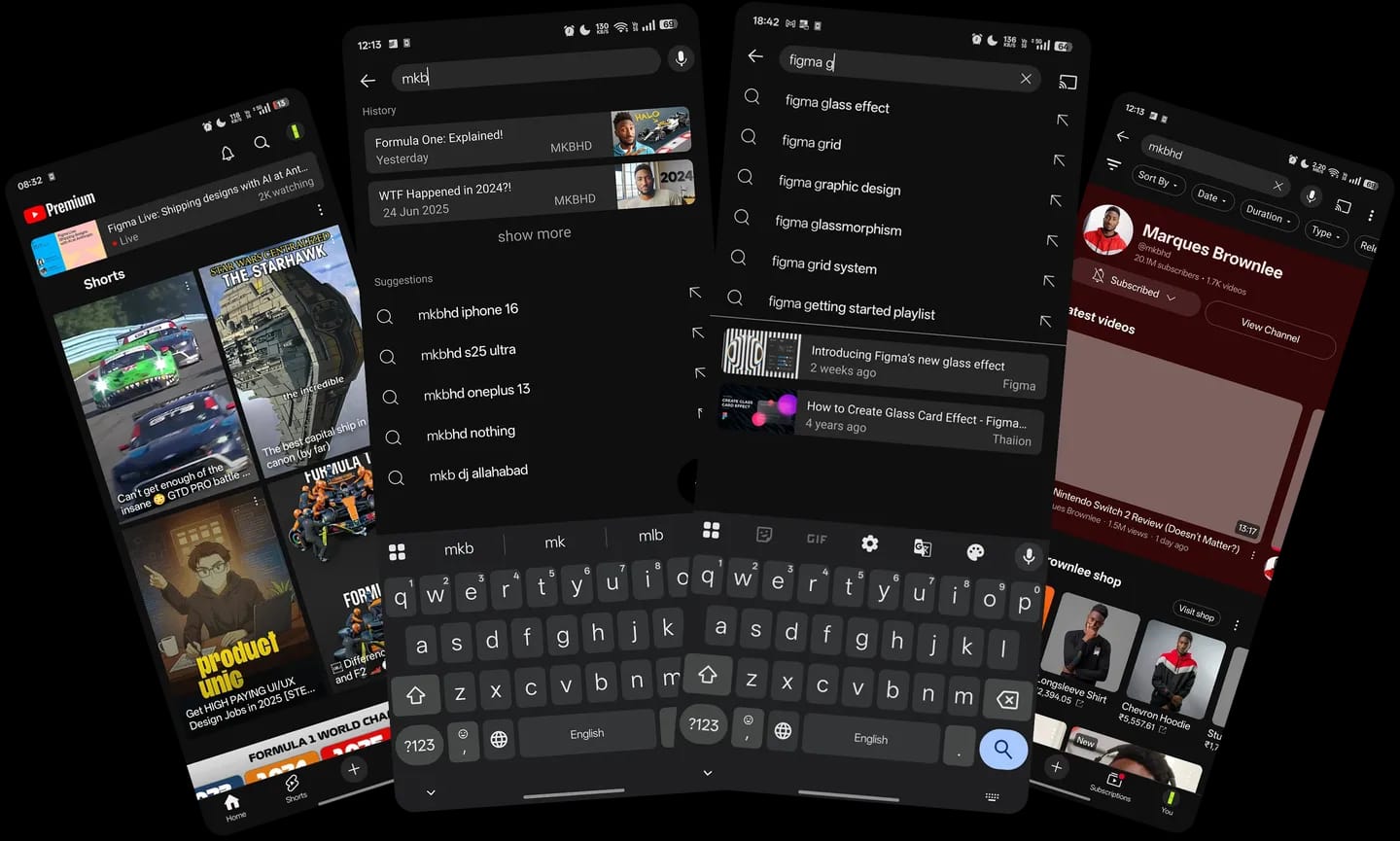
Enhancing YouTube Search for Intent based search results.
Role
Product Designer
Duration
5-6 weeks
Type
Conceptual Project
Context
Youtube is the go to platform for video.
YouTube is a go-to platform for video content, but its search experience often falls short. When trying to find a specific video, people have to enter specific keywords, scroll for long periods of time and enter multiple queries. This inspired me to work on a month-long project to improve YouTube's search experience, aiming to help users find relevant content faster and tailor results to their intent without changing how the algorithm works!
Problem
I noticed users had a hard time trying to find a video
The YouTube search experience was very primitive. Users had no guidance on how to find things. This experience overwhelmed users because of suggestions that felt disconnected; there were no visible filters, and people had to scroll endlessly to find content that they wanted. The biggest hurdle was to understand user intent and build an experience around it to ensure an increase in user satisfaction and trust on the platform.
Current Search Experience
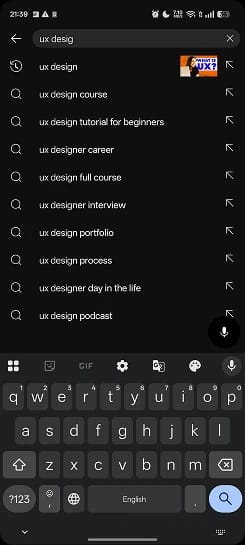
System forces user to search a query in order to see results
No feedback is provided by system, in form of videos, to user for typing the correct query
With the mic icon relocated, users may feel locked into typing and unaware that voice input is still an option.
Search Results
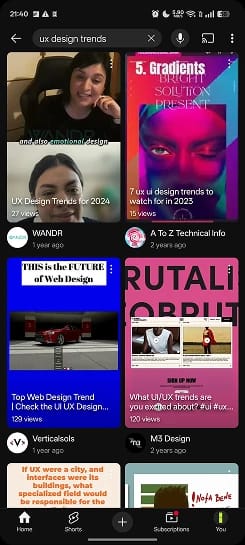
Filters are hidden deep inside the UI, resulting in many people not knowing about them.
System doesn’t recognise the user’s choices of filters, thus frustrating them
How new YouTube search helps users to find a video with less effort
Aman, a product designer, was leaving his office when he overheard his friends talking about a new Figma feature. It sounded exciting, but during his ride home he forgot what it was about. Later that evening, when he finally sat down to relax, he opened the YouTube to wind down. Let’s follow his journey of discovering through YouTube Search.
Aman opens YouTube. He notices a banner on top, which indicates that Figma is streaming. This reminds him of the buzz his friends where talking about. Curious he clicks on search to find what the new feature is.
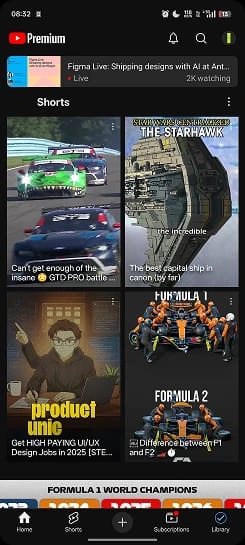
If Aman wants to watch Live Stream, he can just open the video with a single click.
According to survey, 14 out of 20 people’s algorithm didn’t surface live streams in there feed due to which they missed it, causing frustration and sense of loss in users.
User taps on Search Icon
Aman opens the search page, pauses for a moment and glances down to see if anything is useful
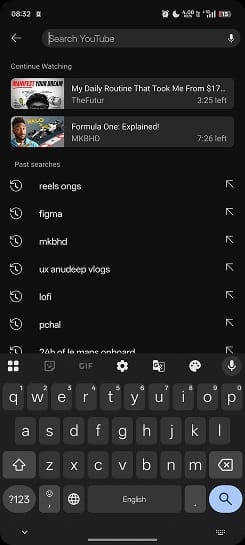
Continue watching allows Aman to view video he left without explicitly going to history to see them or recall their titles.
A high percentage of “history” visits are due as people want to watch something they left earlier.
Sections such as “Continue watching” and “Past searches” allow him to skim sections without wasting time reading content, if not required.
I decided keep the “Past searches” a part of new experience as many users still used it to find videos from a few searches ago.
Aman starts typing the phrase
Focused on typing the phrase, he is unsure whether it will provide correct result or not. So he glances down....
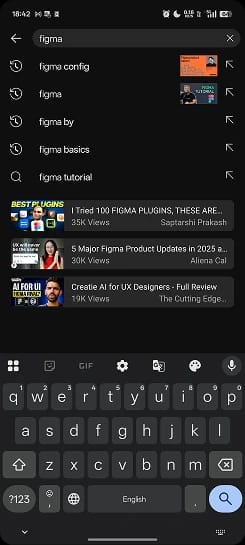
While typing, Aman can go through suggestion to see if they can be of many help.
While suggestion weren’t much helpful on face value, according to users they helped them remember what they already have seen!
Video cards can provide quick access to that video, if users find what they require.
During user testing, a side effect of this card was that user were using it to evaluate their current query and modify it as per needed.
User starts typing the new phrase
He notices the results aren’t what he required, so he start to type a more specific query until he gets the right results.
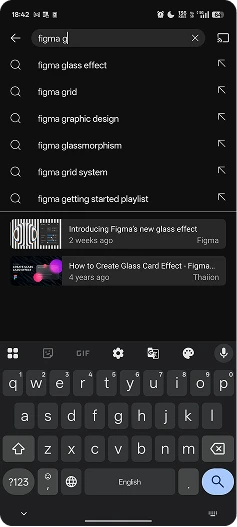
Only 2-3 videos ensure that the users don’t get too overwhelmed while scanning for results.
This avoid choice overload in users mind, reducing cognitive load and helping user to make choices faster.
Aman clicks Enter
As soon as he clicks the search button, a list of shorts appear. He is quickly frustrated as he wants to watch a deep dive. So he attempt to change the query, just then he notices “Type” filter below search bar...
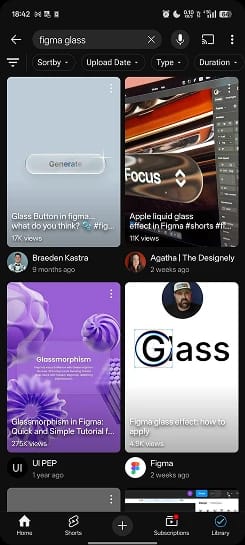
Filters have arrow to indicate multiple options are present, this is inline with Jakob’s law.
Allowing the other filter to bleed in was a choice to indicate that the list is horizontally scrollable.
Placing filters close to search helps user understand that they help in searching subconsciously due to Law of common Regions induced by Law of Proximity.
Aman clicks on “Type” Filter
He clicks on “Type,” and a bottom sheet appears; it has many options. He scans from top to bottom & finds “Videos.” Happy, he chooses to apply the filter.
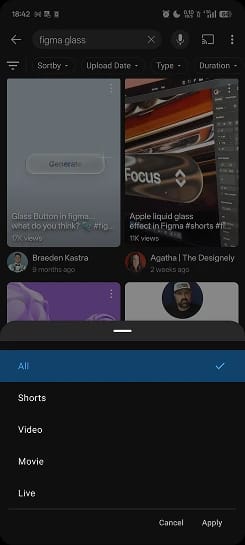
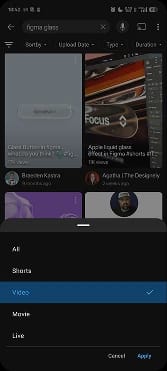
Bottom sheet ensure that choosing a option is near the thumb of the user and keeps the UI predictable
Colour of button changes to help user understand that the state of the filter has changed.
Aman sees results and decides to swipe for “unwatched” Filter
He has searched for glass effects before, so he only wants to see videos that he hasn’t seen yet. He notices that filters are scrollable, so he scrolls and finds “Unwatched.”
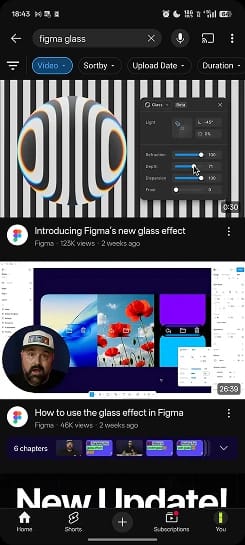
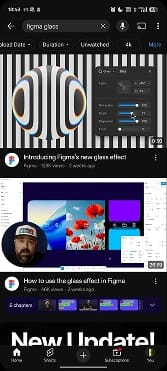
Changing appearance of option ensures user knows that it is active.
During user interviews, I noticed that many people often forgot which filters they had applied, or whether those filters were still active. To make sure the system clearly reflects user actions, filters are now shown in a different state when applied.
The “Filter” button hides, advance filters, allowing user to only user filter that are most important. This hides complexity allowing faster decision making.
Aman clicks on unwatched
Finally, Aman has the result he wants, satisfied he open the second video to watch it!
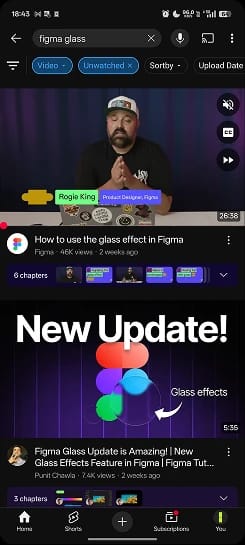
The label shows which option is active, so users do not have to remember their last choice and can stay aware of the system state.
The ‘x’ button signals that tapping it will remove the applied filter, changing the state back to inactive.
Decisions that reshaped the YouTube experience.
Decision 1
How I accounted for user intent in order to customise search for them
I noticed something interesting: people spent less than two seconds on this page. Why? Because they start typing as soon as they enter the page. There are two actions that users perform—either they type the phrase to search or they select from past searches. But this page was the effective start of a journey, yet it lacked basic assistance to help users.
Initial Idea
Many users expressed that they remember/judge a video by visual detail. So I decided to keep thumbnails to help them.
While showcasing the wireframes, many people asked, "How will I know what this is?" This feedback made me change my decision and include the section on the page.
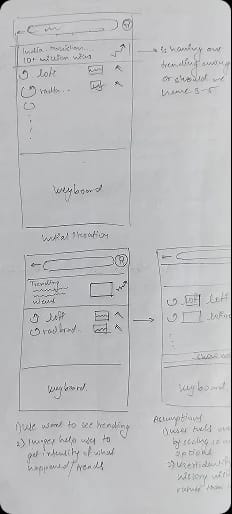
Placing the option at the top made it easier for people to spot while scanning. F-shaped reading patterns increase the chances of noticing sections at the top.
Providing only 2-3 choices helps users to make decisions faster.
While talking to users, some mentioned they rely on past searches to find videos. I kept the section to ensure they wouldn't feel confused.
Initially I started with an assumption that users want to find new content
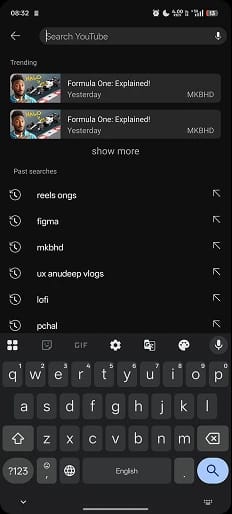
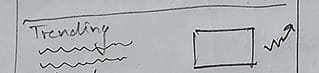
But when I spoke to multiple users, I found a pattern: users arrived on this page with an intent—to find something. While I expected the "Trending" section to help users, after understanding this, "Trending" seemed to severely distract them.
A few new ideas surfaced: "Continue Watching," "Live," and "Watch Later"
First Iteration
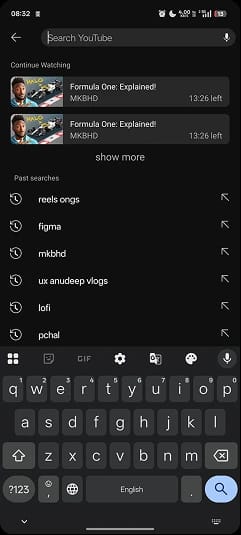
The system helps users find remaining tasks, supporting the "Recognition rather than recall" principle. People don't have to remember what they left incomplete.
Users mentioned that time was an important factor. I added a "Time Left" label to help them quickly decide which videos they could watch now.
Top 90% of videos have attractive thumbnails. Showing them helps users remember not just the video but "why" they were watching it.
While conducting tests, users actively noticed and interacted with the new "Continue watching," which helped them reach their result faster.
Second Iteration
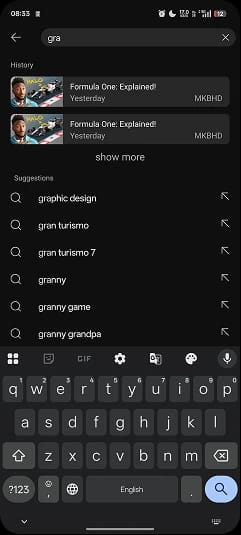
Showing History above was an assumption I made thinking users would be focused on the search bar, so keeping it close would help them notice it.
As people might have more history, I added a "Show More" option to see more videos related to the search from history.
One day, I was talking to a user, and she asked two questions that changed my course:
"What if I am a new user or I don't have history related to the topic?"
"Why place the history section on top when all other apps like Spotify have suggestions at the bottom?"
So I visited Spotify and I found something very useful!
Music Platforms
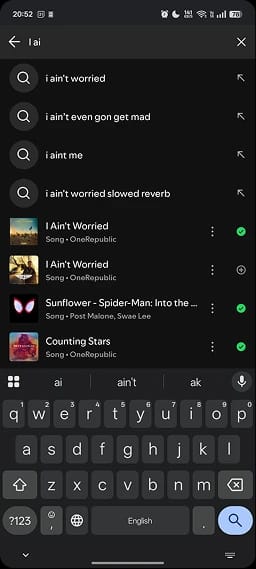
Not only was the section below the text suggestions, but it shows video suggestions based on query, not just history!
Why text suggestions on top?
User expectation: Users expect text suggestions near the search bar as they type. It also helps with query refinement, finishing typing faster.
Why not history?
Current user intent is stronger than past searches. Users are on the search page to find something "now" that might be different from history.
Final Design
Translation to Youtube
The suggestion just below the search bar helps users understand relationship to the query, following the Law of Common Regions.
Video suggestions based on user query and preferences help users adjust their query accordingly.
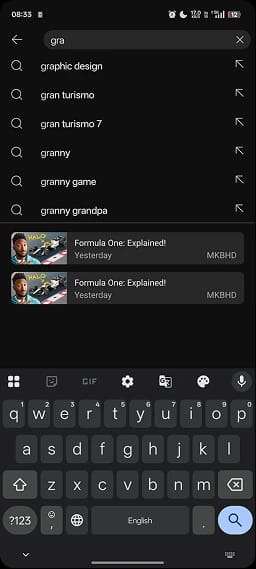
Choosing this new layout seemed to help users subconsciously. While my user testing couldn't reveal a significant effect immediately, I believe on a larger scale this pattern reflects a major shift in user thinking.
Decision 2
Why I had to iterate on the video card more than 3 times.
Before moving forward, let’s see what current YouTube offers.
Current Design



Text here shows what will be searched, the arrow indicates it leads to a new page, and the magnifying glass indicates that it is a suggestion.
The small thumbnail image helps users remember what they were searching for or even identify the specific video.
These cards are designed to help users find what they’re looking for while searching, but many people tend to overlook them. I noticed that people often had a fixed mindset—if one card felt unhelpful, they assumed the rest would be too. This was because the cards seemed too similar to each other.
If a user is trying to recall something from a past search and everything looks identical, it becomes overwhelming and frustrating because they can’t quickly find what they need.
Wireframes
Many users remembered a video by its thumbnail, so I decided to incorporate it more prominently in the card design.
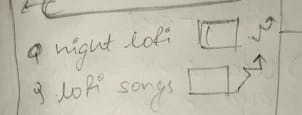
After talking to users, I found they made judgments about watching a video based on various factors such as Views, Time Left, Creator, etc. The challenge was how to show all this information without overwhelming them!
Creator name, thumbnail, and title had to be there always; I decided to use other elements based on context!
First Iteration
Giving the video card a lighter background helped users understand it was clickable, like a button.
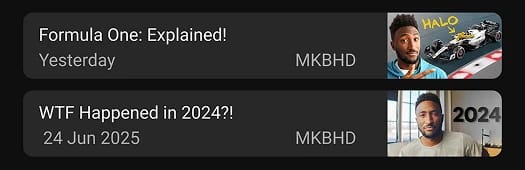
Information on the card, such as "Live" and "New Video," changes based on the specific context of the video.
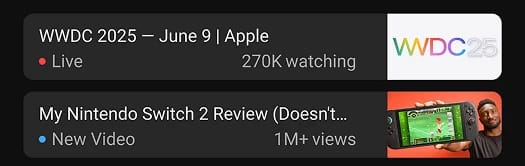
Space between the cards gave each of them their own identity and distinction. I presented these cards to users again, but they were still confused. Why? It took too much time to understand the card. The reason? All the information felt "scattered" according to users.
Final Design

I dug deeper and found that users had to move their attention from left to right constantly. I changed the location of the thumbnail to align everything, and that fixed it!
While this card version didn’t show all information at once, it had enough to help users make a decision and move forward quickly.
How users search better using new experience.
User Story 1
Yash can’t find the relevant results!
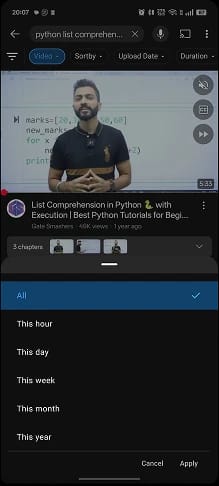
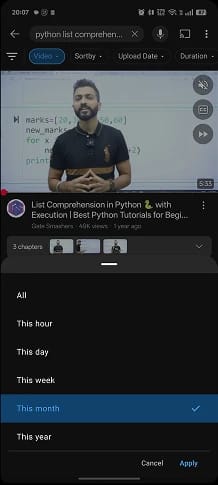
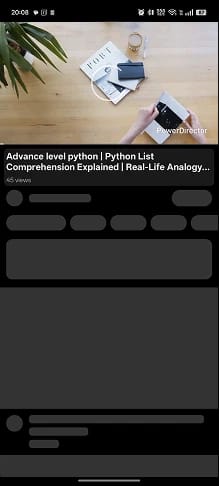
Yash has been preparing for upcoming exams and wants to learn about python lists. He tries to search, but the results are either not video or too old. So he uses filters.
Applying Filters
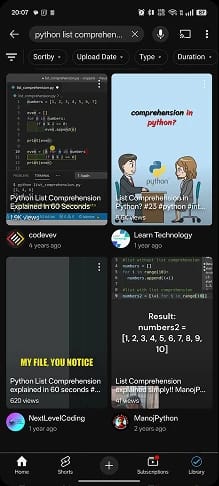

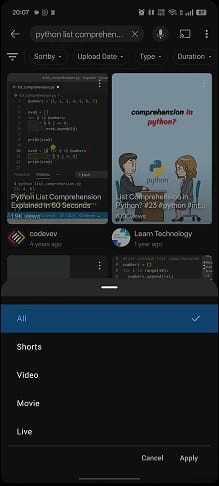
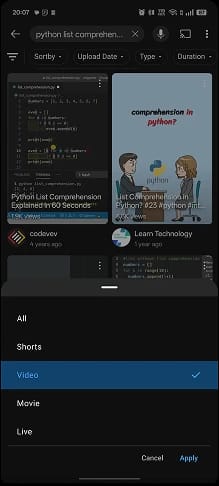

As he observes old videos, he is frustrated but he discovers “date” filter in filter bar.
Finding the video

User Story 2
Saving Laxmi from missing Livestreams
Laxmi wanted to see Figma Config but forgot it was today. She opens YouTube to casually watch something. Let’s see what happens.
Live Stream Pills
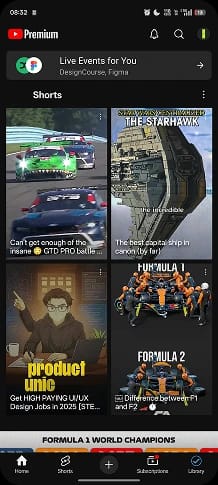
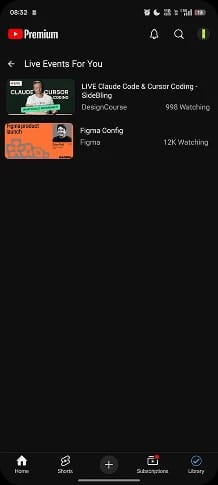
Laxmi notices that the multiple channels are live and remembers about Figma Config.
She quickly clicks on the “Live streams for you” section and starts browsing through the list of live streams.
She finds Figma Config, taps on it, which directly leads her to the stream.
This way YouTube live stream helps user to find their favourite livestreams faster.
Building Scalable UI using style guide
I created a small style guide that was accompanied by Google’s Material Design Library in order to build the UI that suites YouTube.
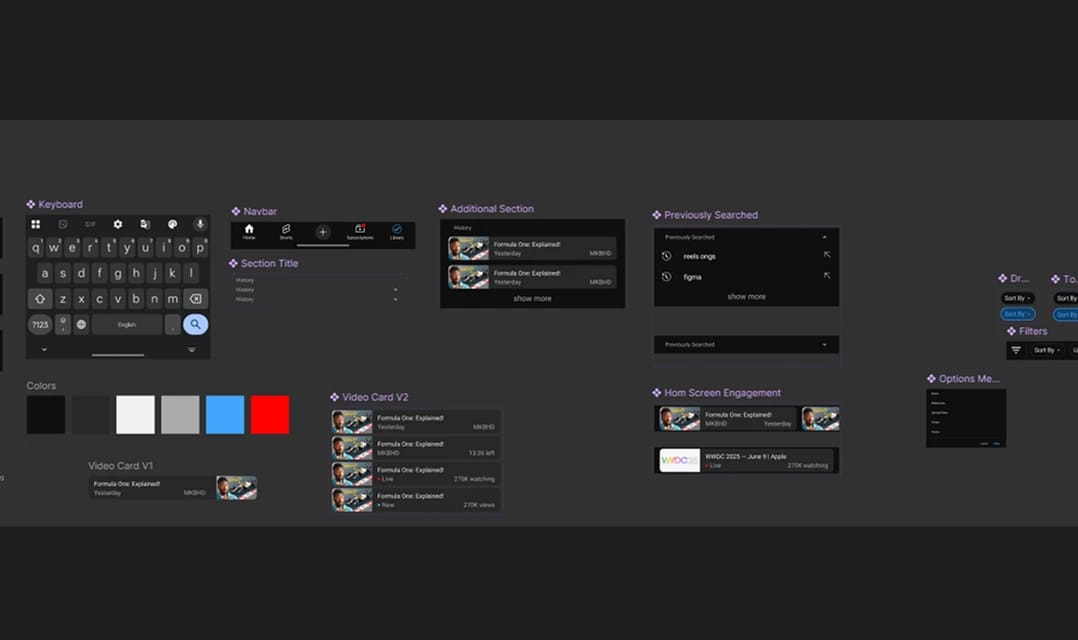

I used auto layout extensively to ensure consistency throughout various screen sizes. Autolayout made sure that the overall structure of the card was maintained while giving it flexibility to change the size. Moreover, using limits for width in combination with trim text helped me to make all the cards look consistent even with varying degrees of text quantity.
As each pill button has various states, I used components to implement them, with clearly defined properties. Using components, I created various states in which the search bar and filter bar could exist.

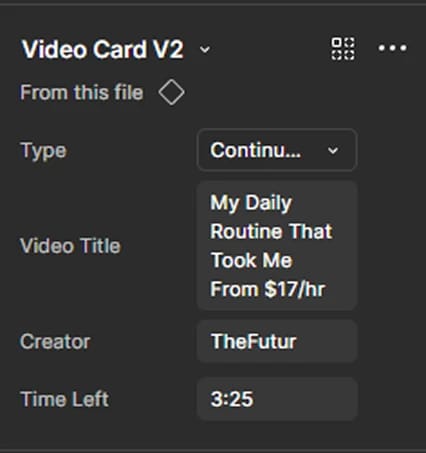
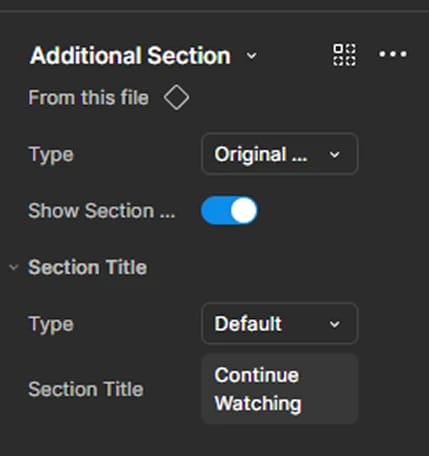
Clear nomenclature in components allowed me to implement the same component in various scenarios, saving hours of duplicate work.
Future Scope of improving search
AI-assisted search can make discovery faster and more intent-driven. Predictive suggestions could anticipate queries, while adaptive filters refine results using viewing behavior, preferences, and context.
The current filter system can be strengthened with advanced options such as duration, creator type, language, and recency. This allows users to narrow results quickly when the goal is specific.
For power users, rapid access to history would significantly improve retrieval. Keyboard shortcuts or search modifiers like “:h” could instantly surface past searches and watched videos, reducing repetition and accelerating repeat tasks.
Main takeaways
Usually I found myself struggling to find the why’s behind the actions of the user, during this project I understood that the “Why” is always fuelled by user’s intent and need. Understanding intent was the key to effective problem solving for users.
A big mindset shift for me was moving away from sticking rigidly to a set of questions. In the past, that approach rarely gave me deep insights. Here, by focusing on themes instead of fixed questions, I was able to uncover deeper pain points more naturally.
I always thought jumping to UI directly will give me more ideas and various cases, but in this project when I clearly wrote my hypothesis and sketched my ideas, I understood their importance and how validating ideas as wireframe is more economical and efficient as a designer.
Thank you!